

A colleague asks if Thursday at 4 works. Your work calendar says yes. Your personal calendar, which your work calendar cannot see, has the school pickup at 3:45. You find out on Thursday.
Being free on one calendar is not being free. The fix is to make sure whatever answers “when can you meet?” is looking at both. There are three ways to do that, and the first two cost nothing.
The options at a glance
| Option | Works when | What colleagues see | Where it stops |
|---|---|---|---|
| Outlook: Add personal calendars | Work is Microsoft 365; personal is Google or Outlook.com | Busy, no details | One personal account; Outlook on the web |
| Google: share at free/busy | Both calendars are Google | Busy, no details | Your work admin can limit sharing |
| A booking link | Other people are choosing the time | Only the open slots | Does not help when you are the one checking |
| An assistant that reads every calendar | Calendars are on different providers, or there are more than two | Nothing changes on their side | Paid |
If your work account is Microsoft 365
Outlook on the web can connect one personal account and count it in your availability.
- Sign in to your work account in Outlook on the web and open Calendar.
- Select Add calendar, then Add personal calendars.
- Choose the personal account to add: Google or Outlook.com.
Your personal events now appear on your work calendar, and people scheduling with you see that time as busy without seeing what it is. Microsoft’s steps are in Show personal events on your work or school calendar. Two limits: it adds the calendar only, not the email, and it connects one personal account.
If both calendars are Google
Share the personal calendar with your work address at the lowest permission.
- In your personal Google Calendar, open the menu next to the calendar and choose Settings and sharing.
- Under Share with specific people or groups, add your work email address.
- Set the permission to See only free/busy (hide details).
Your work account now sees those blocks as busy with no titles. Google describes the permission levels in Calendar Help. If the option is missing on the work side, your administrator has limited sharing.
If other people are doing the picking
When a client is choosing the time, a booking link is the cleaner answer: they see only the open slots, and the link checks your calendars before offering one. The link has to be connected to every calendar that can make you busy, or it will offer the school-pickup slot.
Where the built-in options run out
Both free options work inside one vendor. They get awkward in three cases:
- Mixed providers. Work on Outlook, personal on iCloud, or the other way round.
- More than two calendars. A second business, a board seat, a shared family calendar.
- You are asking, not them. Even with calendars overlaid, finding a 45-minute slot across next week is still you scanning a grid.
Asking instead of scanning
alfred_ is an AI personal assistant for work. It connects Google Calendar, Outlook Calendar and iCloud Calendar and shows them in one view, and you can turn any calendar on or off.
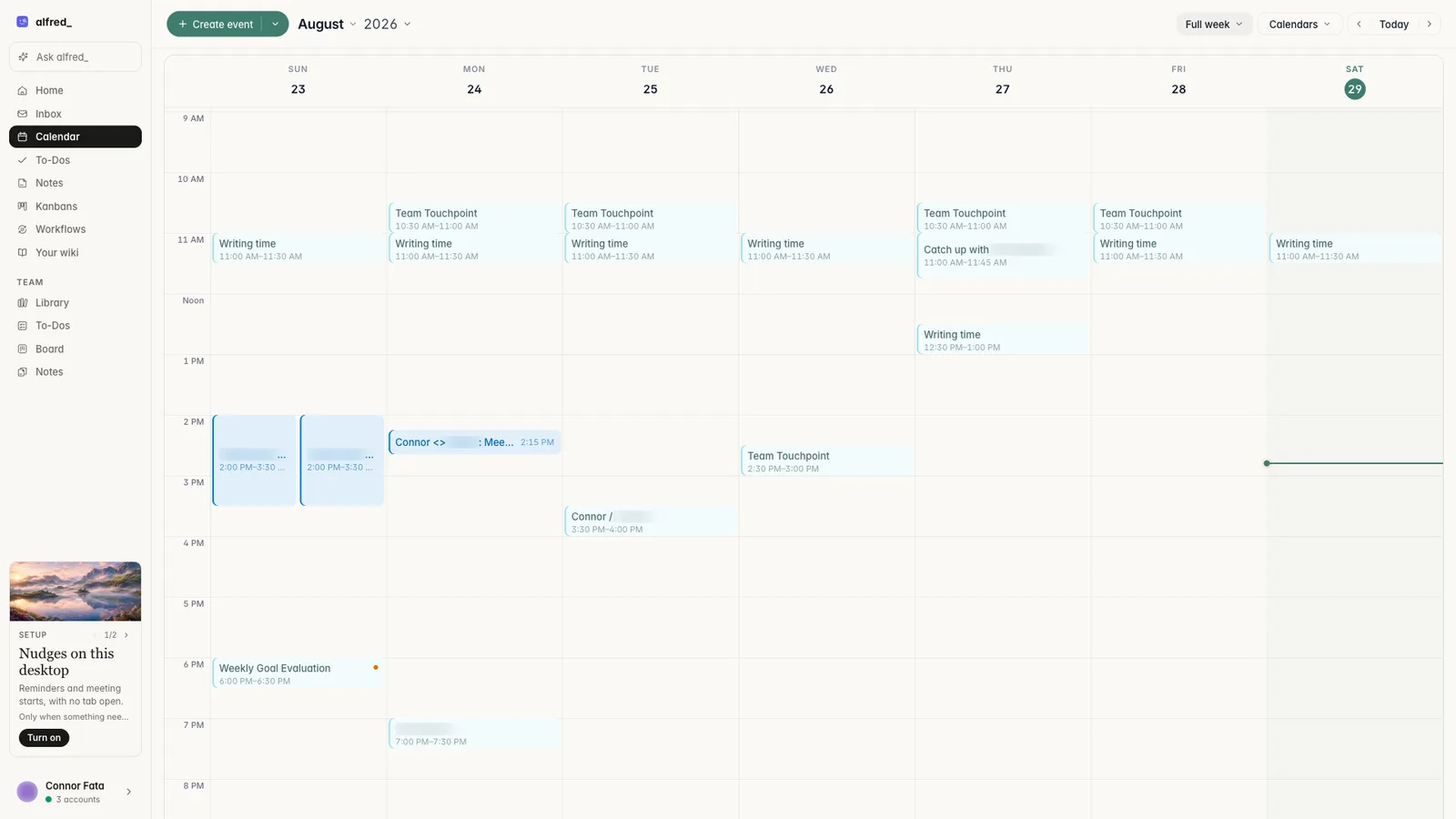
Every connected calendar in one week view. Shown with sample data.
Then you ask. On the web, on iPhone or by text:
You: When am I free for 45 minutes Thursday or Friday afternoon?
alfred_: Thursday 1:00 to 2:30. Friday 2:00 to 5:00. Thursday after 3:30 is blocked by a personal event.
Illustrative exchange.
From there you can ask it to add the meeting. If you are inviting people, you see the invite before it is sent, and alfred_ does not move or change a meeting unless you ask.
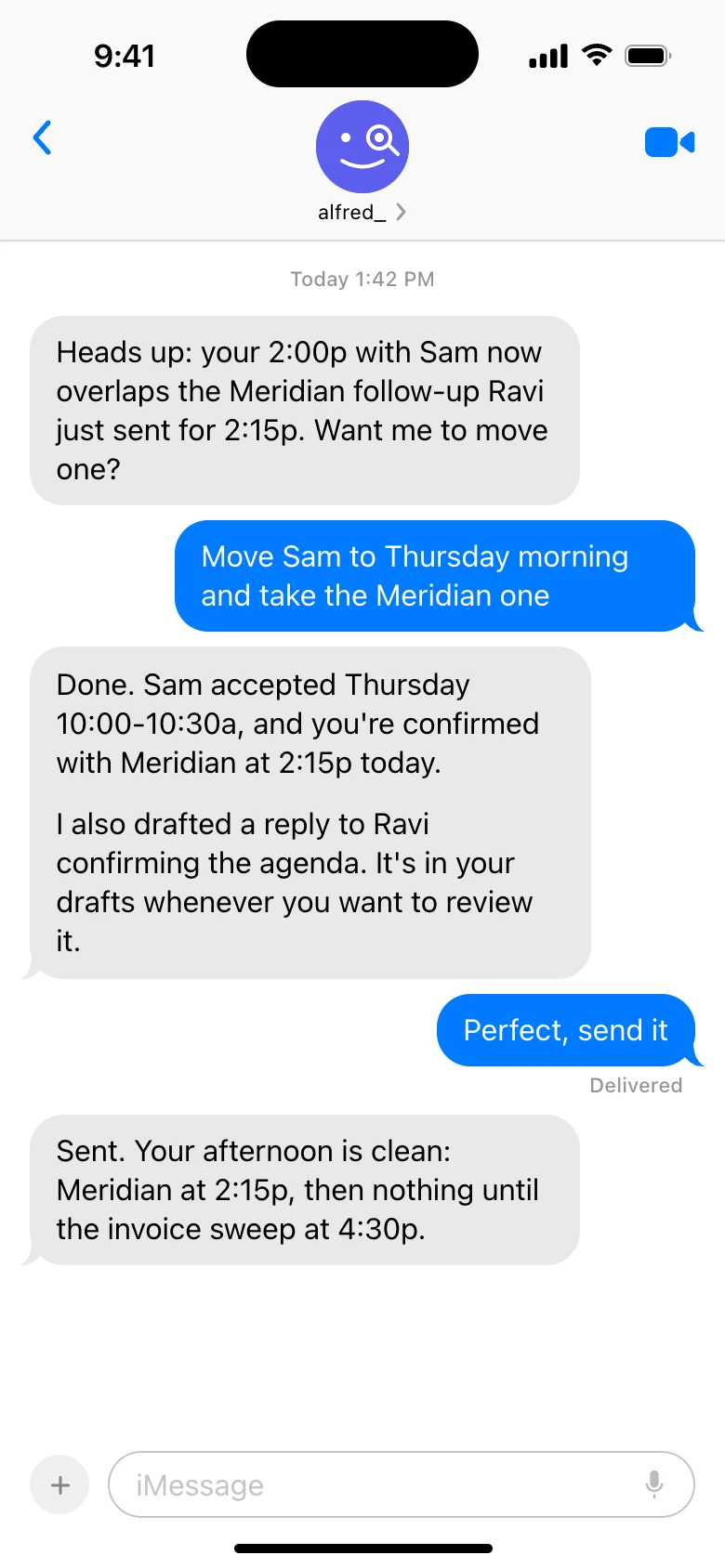
alfred_ answers by text too. This exchange is about moving a meeting. Shown with sample data.
Every account also comes with a booking link that offers times when you are free across your connected calendars, which covers the case where the other person is choosing.
What it does not do: it does not auto-schedule your tasks or rearrange your day the way Motion or Reclaim do. It answers the question and makes the change you ask for. Plans start at $29.99 a month with a 7-day free trial. More detail is on the calendar page.
Which to use
- Microsoft 365 at work, one personal Google or Outlook.com calendar: Add personal calendars. Free, five minutes.
- Google on both sides: share at free/busy. Free, two minutes.
- Mixed providers, or three or more calendars: something that connects to each one directly.
- You are tired of scanning the grid: something you can ask.