Calendar
Know when a meeting moves,before you're on the road.
alfred_ keeps every calendar in one place and texts you before each meeting.
 Google Calendar
 Outlook Calendar
 iCloud CalendarEvery calendar, one view
Clients expect an answer the same hour.Your team has more to keep track of than ever.
- 01
Their other vendors reply fast now.
A two-day reply reads as "they don't care."
- 02
Every call ends in a summary full of promises.
Nobody owns turning them into done.
- 03
More accounts, same team.
You're expected to grow the account list without adding coordinators.
Client work used to slip once in a while. Now it slips every week, and the client notices first.
Standups, spreadsheets and the CRMall depend on someone remembering.
- Ask each rep in standupIt's from memory, and you become the bottleneck.
- A coordinator with a spreadsheetStale by noon, and it leaves when they do.
- The CRMIt shows what someone typed, not what the client asked.
- ChatGPT or CopilotIt answers when someone asks. Your problem is what nobody asked about.
- Hire another personIt adds another inbox with the same blind spot.
Nothing on your calendarsurprises you.
- One view. Google, Outlook and iCloud calendars, together.
- Before meetings. A text ahead of time. You pick how early.
- When plans change. A text when a meeting moves or is cancelled.
- Your booking link. Share one link. People pick a time you're free.
One meeting, start to finish.Nothing moves unless you ask.
- 01
It moved.
Luis moved the Harbor walk-through from 2:00 to 3:00 PM.
- 02
alfred_ saw the change.
It's on your calendar today, at the new time.
- 03
A text.
"Harbor walk-through moved to 3:00 PM."
- 04
On time.
2:45 PM: a reminder for the walk-through with Luis.
Ask about your day."When am I free this week?"
Ask on Home, by text or on iPhone. Ask it to add a meeting, and it shows you the invite before it's sent.
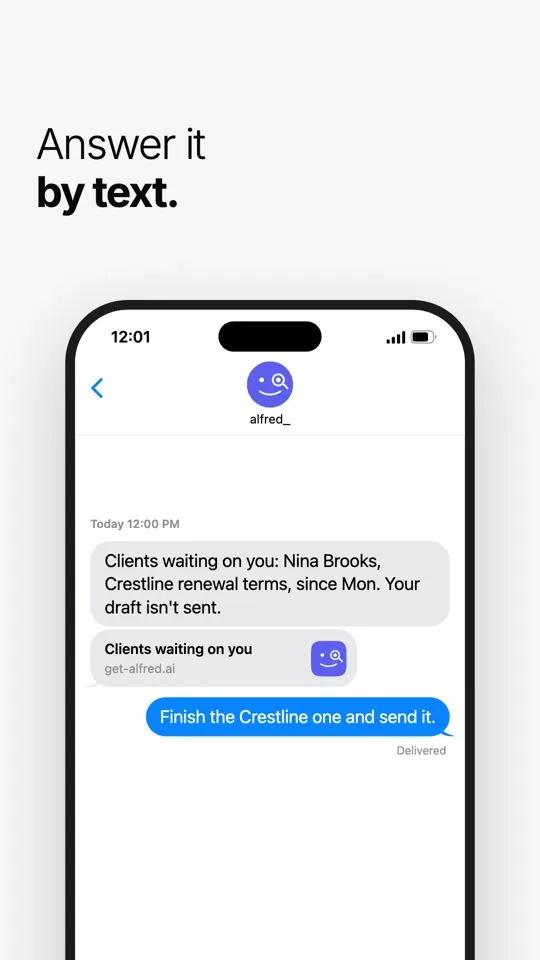
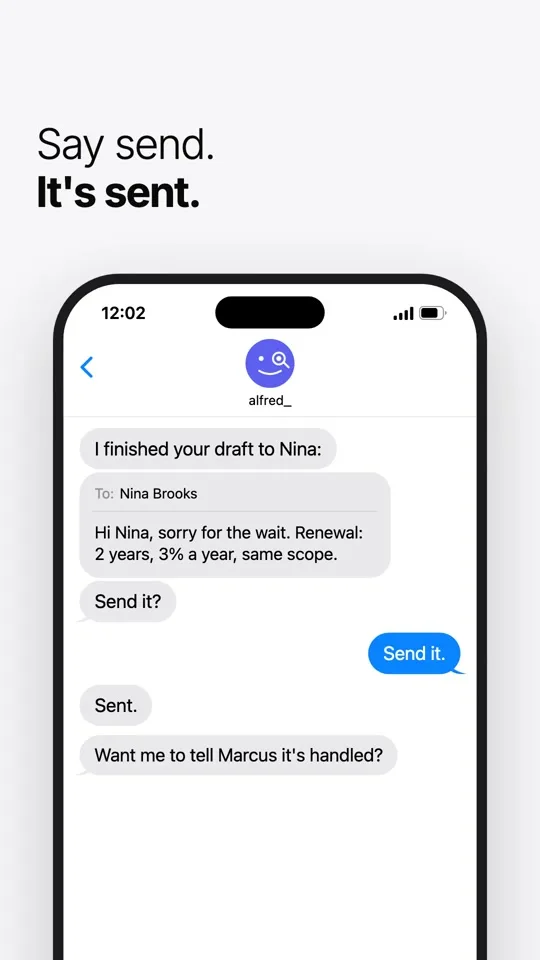
Built inside a client services team. Nothing goes out without your OK.
Used by people at 250+ businessesAgencies, law firms, contractors, real estate firms and accounting practices
You approve, alfred_ does the typing.
Nothing reaches a client until you press send.
Each teammate stays in control.
Nobody sees anyone's mail unless that person turns it on, and every look is logged where they can see it.
It shows its work.
Every answer points to the email it came from. If there's no evidence something got done, it says so.
Independently assessed.
A CASA Tier 2 security assessment, for Google's review. Your inbox stays in Gmail or Outlook.
Which calendars does alfred_ support?
Google Calendar (including Google Workspace), Outlook Calendar (including Microsoft 365) and iCloud Calendar. Google and Outlook connect when you sign in with Google or Microsoft, so alfred_ never sees those passwords.
Can I see Google and Outlook calendars together?
Yes. Connect both and your events show up in one view. Turn any calendar on or off.
When does alfred_ text me about a meeting?
Before each meeting, as early as you choose, and when a meeting moves or is cancelled. Texts about changes that come in during your quiet hours wait until they end.
Does alfred_ change my calendar on its own?
No. alfred_ never moves, cancels or changes a meeting unless you ask it to.
Can alfred_ add meetings for me?
Yes. Ask on Home or by text, like "lunch with Karen Thursday at noon," and it goes on your calendar. If you are inviting people, alfred_ shows you the invite before it is sent.
What is my booking link?
Every alfred_ account comes with a booking link. Share it and people pick a time when you are free across your connected calendars.