

You are in Slack, mid-conversation, and someone asks whether you are free Thursday at two. To answer, you leave Slack, open your calendar, find Thursday, come back, and type. The question took five seconds to read and a minute to answer.
Most of the small questions at work are like that. The answer is in your email or your calendar, and you are somewhere else.
What asking from Slack looks like
alfred_ is an AI personal assistant for work. It connects to your email and calendar, and you can ask it things on the web, on iPhone or by text. With alfred_ added to your Slack workspace, you can also ask it in a DM.
You send it a message. It answers in a thread under your question, and a follow-up inside that thread stays in that thread. While it works, the reply says what it is doing.
Things people ask on the first day:
- “What’s on my calendar tomorrow?”
- “Who’s waiting on a reply from me?”
- “Draft a reply to the last email from Dana.”
- “Find the contract Sam sent last week.”
- “Move my 3pm with Priya to Thursday.”
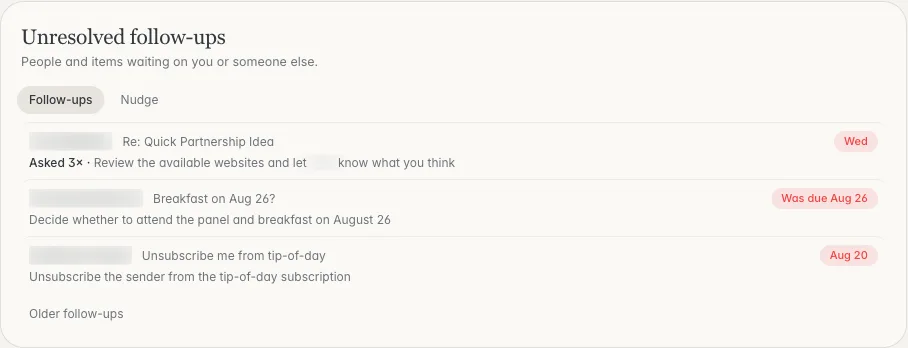
The list behind “who’s waiting on a reply from me?”. Shown with sample data.
DM or channel
| In your DM with alfred_ | In a channel | |
|---|---|---|
| How you ask | Send it a message | @mention alfred_ in a channel it has been added to |
| Where it answers | In a thread only you can see | In the thread, for the channel to see |
| What it answers from | Your email and calendar | Your email and calendar, plus that thread |
| Good for | Anything private | An answer the whole thread needs, such as when you are free |
Setting it up
- Sign in to alfred_ with your email and calendar connected.
- Open Integrations, then Slack, and press Add to Slack.
- alfred_ sends you a DM in Slack. Ask it anything you would text it.
If your workspace requires approval for new apps, Slack asks your admin at step 2.
For teammates. Anyone in the workspace can open the alfred_ app in Slack and send it a message. The first time, alfred_ replies with a link. They sign in to alfred_, then confirm with Slack. From then on it answers each person from their own email and calendar. Nobody sees anyone else’s.
Nothing leaves without your yes
When you ask for a reply, a forward or an invite, alfred_ shows it to you in the thread first. It sends when you say yes.
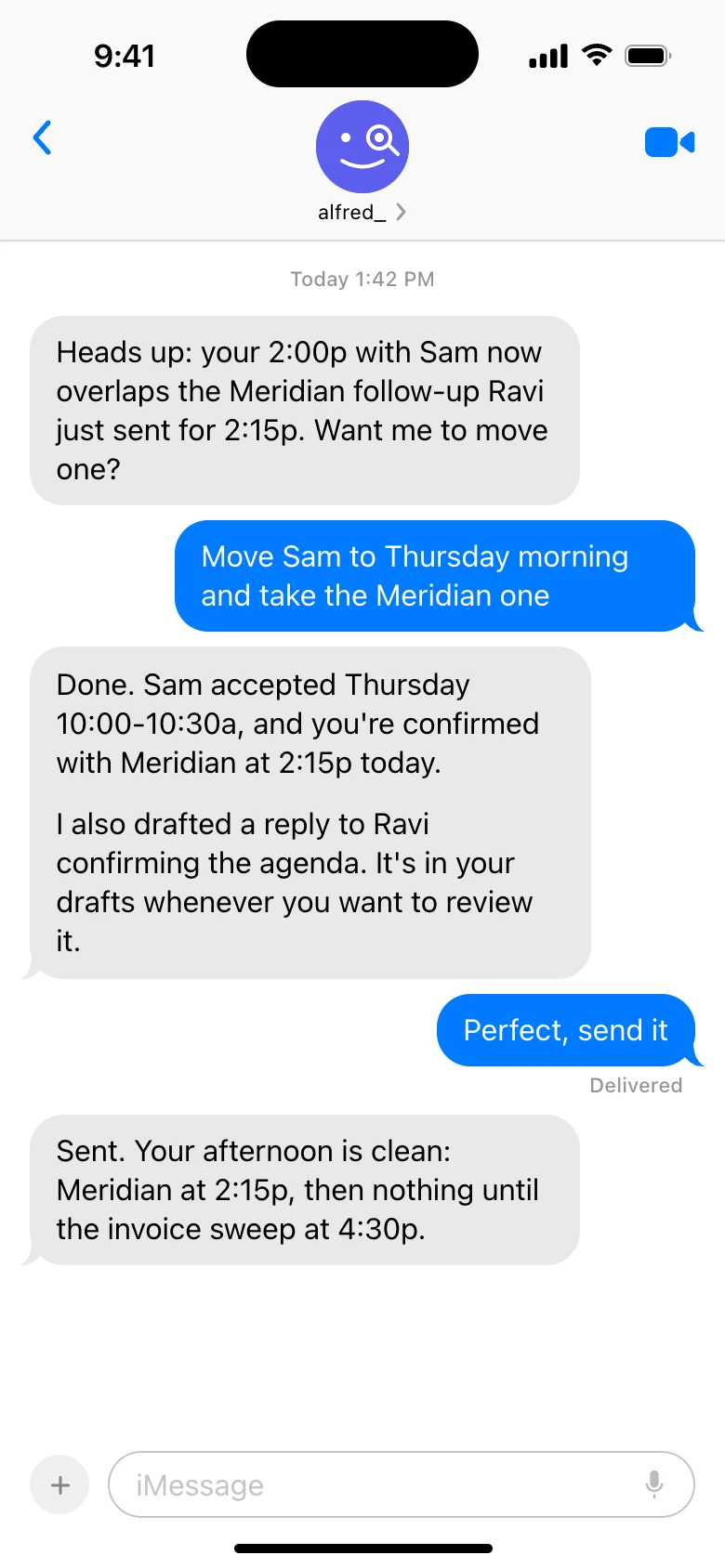
The same assistant by text. What you can ask in Slack is what you can ask here. Shown with sample data.
What it does not do in Slack
- Join a channel conversation unless you @mention it.
- Post as you, or read anyone else’s email or calendar.
- Open files you drop into the DM, for now.
- Send anything without your yes.
Asking in Slack versus asking about Slack
These are two separate things, and you can use either or both.
Asking in Slack is what this page covers: you message alfred_ from Slack and it answers from your email and calendar.
Asking about Slack is the other direction. Connect your Slack account on the Integrations page and alfred_ can read the channels and DMs you are in, so on the web or by text you can ask what the team said, catch up on a channel, or see who in Slack is waiting on an answer from you. That is covered on the Slack page.
Plans start at $29.99 a month with a 7-day free trial.