

The emails you forget to answer are almost never the unread ones. They are the ones you opened, understood, and decided to deal with later. Gmail then marks them read, new mail arrives on top, and “later” has no place to live.
So the job is not really tracking. It is giving “I owe this person a reply” a place in Gmail that survives the next forty emails.
Gmail has four built-in tools for that. Here is how to set each one up, in the order worth doing them.
The four built-in options at a glance
| Method | What it does | What you have to do | Where it fails |
|---|---|---|---|
| Star + Multiple Inboxes | Shows every starred email in its own pane beside the inbox | Star when you read, unstar when you reply | The email you read and did not star |
| Label (for example, Reply) | Same as a star, but only for replies you owe | Apply the label, remove it when you reply | Two taps on a phone, so it gets skipped |
| Snooze | Brings the email back to the top on a date you pick | Choose the date | Good for one email, not for a list |
| Nudges | Gmail resurfaces emails it thinks you forgot | Nothing | Google picks which emails and when; there is no list to review |
1. Star it, and give stars their own pane
This is the setup to do first.
- When you read an email that needs a reply and you are not writing it now, star it. On a computer, press
swith keyboard shortcuts on, or click the star. On a phone, tap the star. - On a computer, open Settings, choose See all settings, and go to the Inbox tab.
- Set Inbox type to Multiple Inboxes.
- In the first section, enter the search query
is:starredand name it Reply. - Choose where the section sits (to the right of the inbox works well on a wide screen) and save.
You now have two lists on screen: the inbox, and everything you owe a reply. Unstar an email when you answer it and it leaves the pane.
If you already use stars for other things, use a label instead. Create a label called Reply, and use label:reply as the section query.
2. Snooze the ones that depend on a date
Some emails cannot be answered yet: you need a number that arrives Thursday, or the meeting has not happened. Hover over the email, select the clock, and pick the day. It leaves the inbox and comes back to the top then.
Snooze is the right tool for a single email with a known date. It is the wrong tool for a general queue, because snoozed emails are out of sight until they return, and ten of them returning on one Monday morning is its own problem.
3. Leave nudges on
Nudges are on by default. Gmail looks for emails you probably meant to answer and moves them back to the top of the inbox with a prompt. To check the setting on a computer: Settings, See all settings, General, Nudges. The two options are Suggest emails to reply to, and Suggest emails to follow up on. Google’s instructions are in Gmail Help.
Treat nudges as a backstop. You cannot see what Gmail is tracking, you cannot set how long it waits, and it surfaces a few emails, not all of them.
4. Add one search for a weekly sweep
Once a week, run a search for older mail still sitting in the inbox, for example in:inbox older_than:3d. It will not tell you which of those need a reply, but it shows you everything that has been sitting there, which is where the unstarred ones hide. Star what you owe, archive the rest.
Where the built-in setup fails
Gmail can find unread mail, starred mail and labeled mail. It has no way to find “read, and never replied to”. That means every method above except nudges depends on one moment: you, marking the email, at the time you read it.
That moment is weakest exactly when it matters. You read on a phone, walking somewhere. You meant to star it. A week later the client writes again, and the first you hear of the missed reply is from them.
If your star habit is solid, stop here. The setup above is free and it works.
If marking each email is the part that fails
alfred_ is an AI personal assistant for work. It connects to Gmail through Google’s sign-in and reads each email as it arrives. It works out which ones need your answer and keeps them on one list until you reply, whether or not you opened them and whether or not you starred anything.
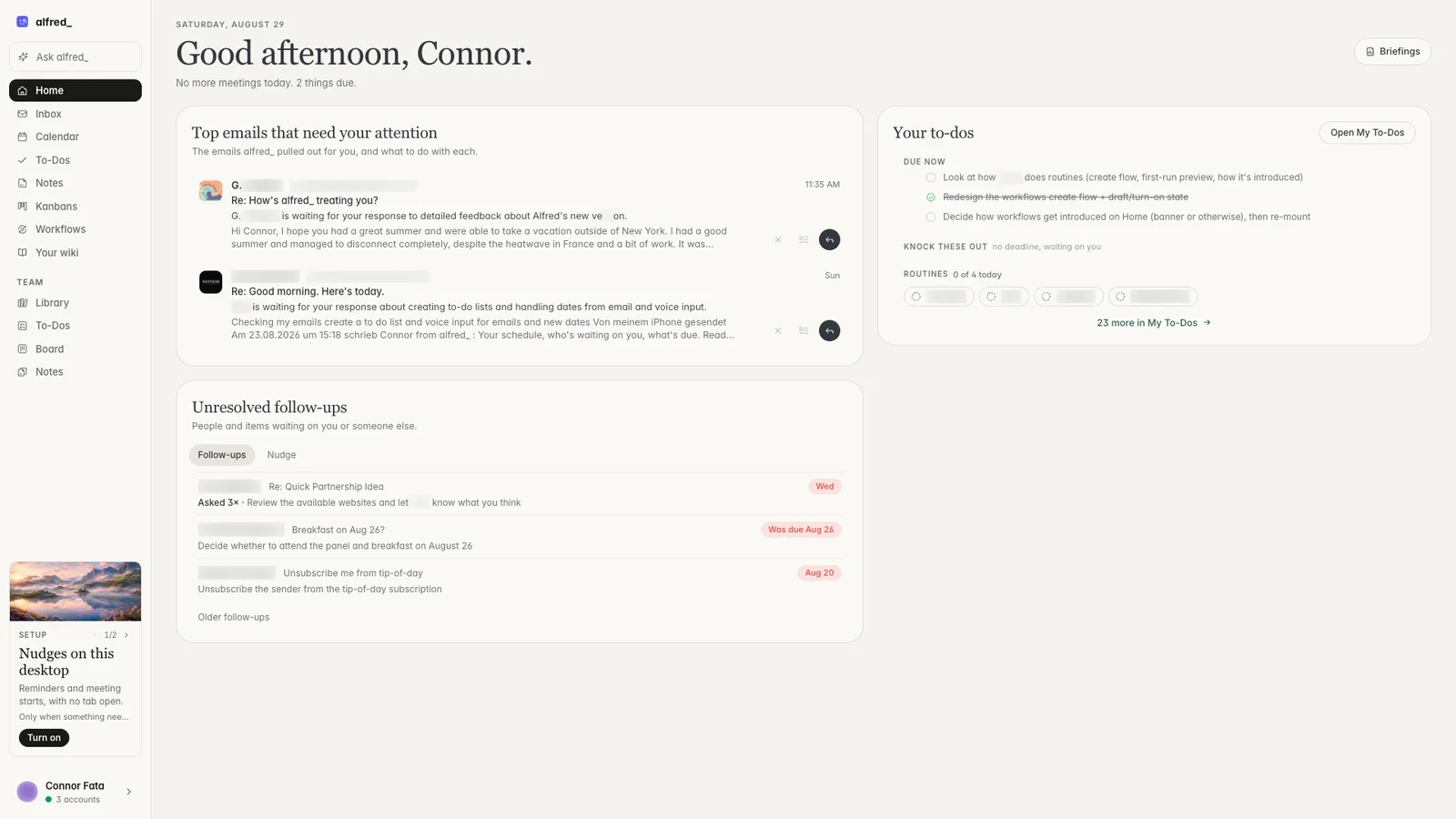
What needs you, on one list. Shown with sample data.
It also tracks the other direction, the emails you sent that nobody answered, which Gmail’s stars cannot do at all. Each morning a brief arrives by email or text with what needs you, the meetings ahead and the tasks due.
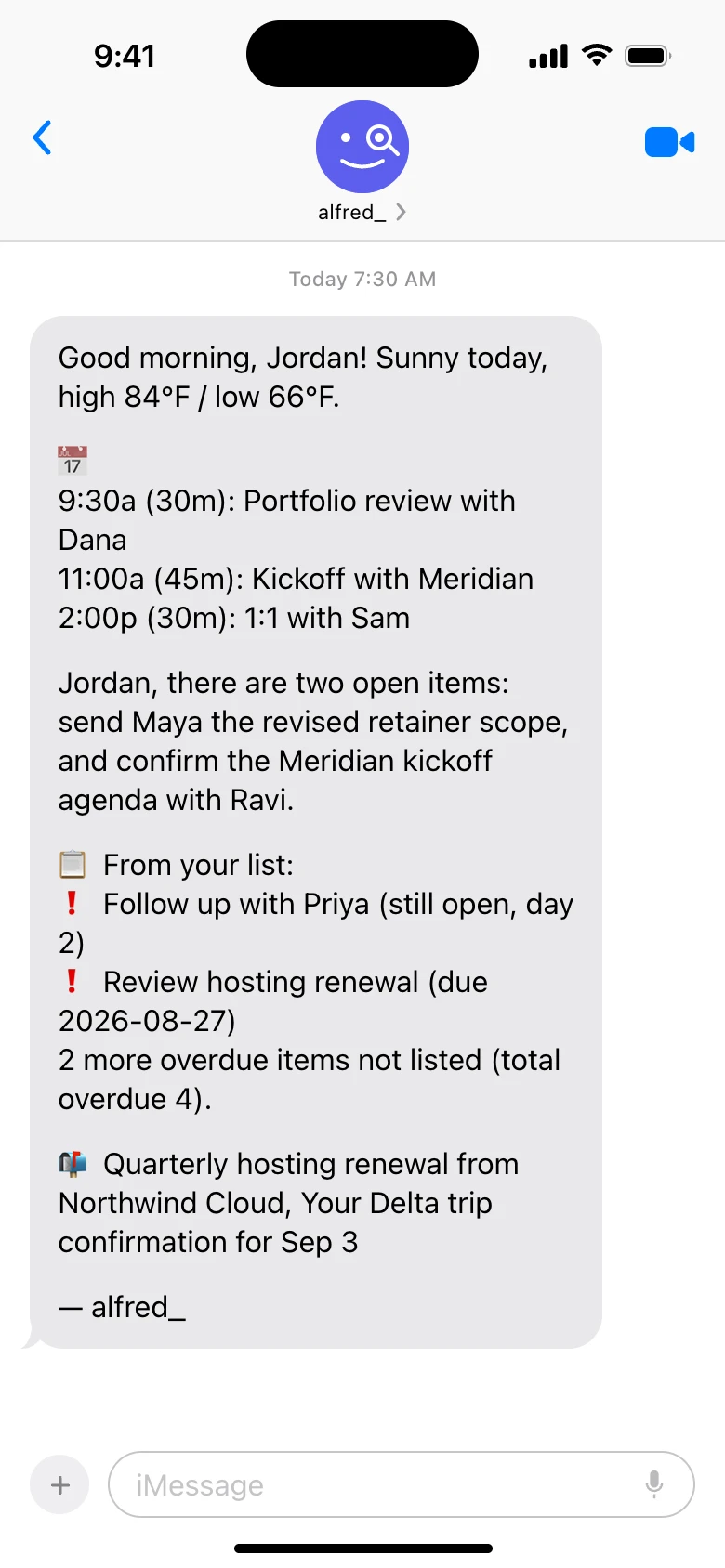
The morning brief as a text. Shown with sample data.
When you want help with a reply, ask for a draft, review it and send it. alfred_ does not send replies on its own.
Three things to know before you try it. You keep using Gmail as you do today; alfred_ is not a new email app. It can connect up to six Gmail, Outlook and IMAP accounts and keep one list across them, which matters if your replies are owed from more than one address. And plans start at $29.99 a month with a 7-day free trial. How a thread is judged to be waiting on you is in Follow-ups: threads waiting on a reply.
Which one to use
- Low volume, good habits: star plus Multiple Inboxes. Five minutes, free.
- Emails that wait on a date: add snooze.
- You read on your phone and forget to star: the manual queue will keep missing the same emails. Use something that reads the threads for you.
- More than one account: a per-account star queue means checking several panes. One list across accounts is the reason to use an assistant.
A reply queue is working when you can answer one question without scrolling: who is waiting on me right now?