

You read the email on your phone between two meetings. It needed a real answer, so you left it for later. Outlook marked it read, it slid down the list, and three days later the sender wrote again: “Just checking you saw this.”
That is one kind of unanswered email. The other kind is quieter: the proposal you sent last Tuesday that nobody replied to, which you will not think about again until it is awkward.
Outlook treats these two very differently. It gives you decent tools for the first and almost nothing for the second.
First, which “unanswered” do you mean?
| Emails you have not answered | Emails nobody answered you | |
|---|---|---|
| Where it lives | Your inbox, usually already marked read | Sent Items, where you do not look |
| What Outlook gives you | Flags, filters, search folders, message reminders | A flag you set yourself before sending (classic Outlook) |
| Who has to remember | You, at the moment you read it | You, at the moment you send it |
| How it fails | You read it and did not flag it | You sent it and stopped thinking about it |
Emails you have not answered
1. Flag it the moment you decide not to reply yet
Hover over the message in the list and select the flag, or right-click and choose Flag. In classic Outlook you can right-click the flag to give it a due date, and flagged messages appear in the To-Do Bar and in Tasks. Microsoft’s guide is Flag email messages for follow up.
The habit that makes this work is narrow: flag when you read something that needs an answer and you are not answering it now. Clear the flag when you reply.
2. Work from one search folder, not from the inbox
A search folder is a saved view. It shows every message that matches a rule without moving anything. Outlook has three ready-made ones that matter here: unread mail, mail flagged for follow-up, and mail that is either unread or flagged for follow-up. Use the third.
In new Outlook for Windows, go to Search Folders in the folder list and choose to create a new search folder. In classic Outlook it is on the Folder tab under New Search Folder. Microsoft documents both in Use Search Folders to find messages.
That one folder is now your list of what still needs you: everything you have not opened, plus everything you opened and flagged.
3. Leave message reminders on
In Outlook on the web and Outlook.com, message reminders appear at the top of the inbox for important messages older than three days that you have not replied to. Microsoft describes them in Use intelligent technology in Outlook on the web. Two limits: only one reminder shows at a time, and Outlook chooses which message it is. Treat it as a safety net, not a list.
Where this breaks
Everything above depends on the flag. The email you read on your phone and did not flag is in neither view: it is not unread, and it is not flagged. That is exactly the email from the opening of this post.
Emails you sent that nobody answered
Outlook does not pair a sent message with the missing reply, so there is no built-in view of “sent, still waiting”. You have two manual options.
Flag it for yourself before you send (classic Outlook). In the message window, choose Follow Up on the Message tab and pick a date. The sent message lands on your task list, and you clear it when the reply comes. Microsoft’s steps are in Send an email message with a follow-up reminder. At the time of writing, Microsoft’s help page says this is not yet available in new Outlook for Windows.
Keep a Waiting category. Create a category called Waiting, apply it to the sent message, and add a search folder for that category. Review it on a fixed day each week and remove the category when the answer arrives.
Both work at low volume. Both share one weakness: you have to know at send time which emails will go quiet. The ones that hurt are usually the ones you did not expect to chase.
What to do if the marking is the problem
If you read this far and thought “I will not flag consistently”, that is the honest answer for most people, and it is the gap alfred_ is built for.
alfred_ is an AI personal assistant for work. It connects to Outlook or Microsoft 365 through Microsoft’s sign-in and reads each email as it arrives. It flags the emails that need your answer, including the ones you already opened, and it tracks the threads where you are waiting on someone else. Neither list depends on you marking anything.
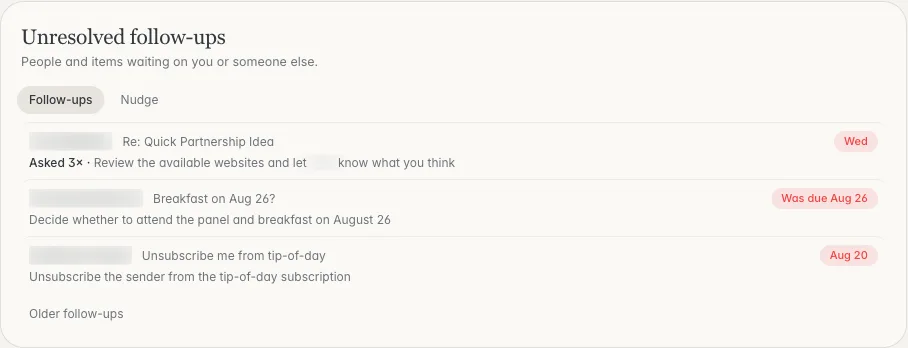
Both directions in one place: what is waiting on you, and what you are waiting on. Shown with sample data.
Each morning the same lists arrive as a brief, by email or text, next to the meetings ahead and the tasks due. You can also ask “What am I waiting on?” on the web, on iPhone or by text. When you want to follow up, ask for a draft, review it and send it yourself. alfred_ does not send a follow-up on its own.
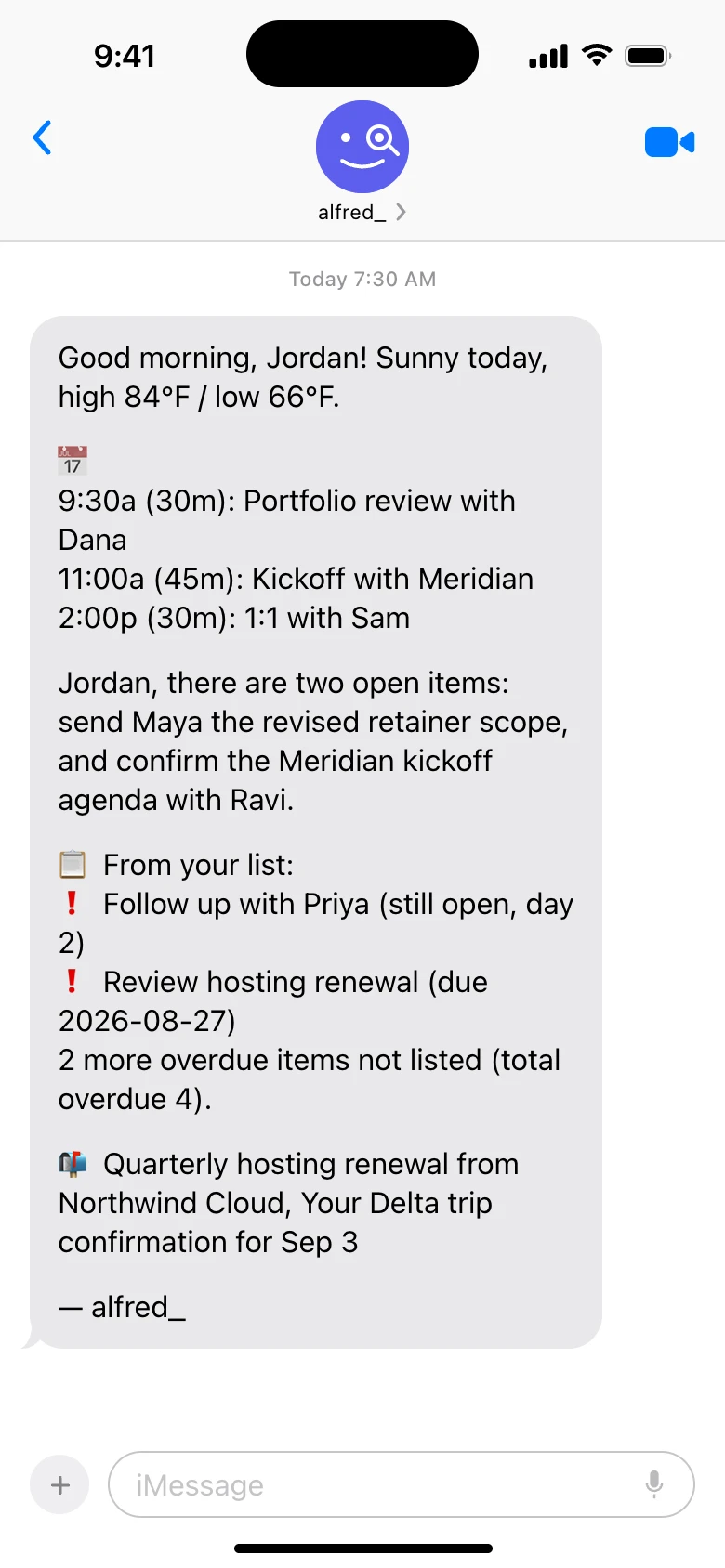
The morning brief as a text. Shown with sample data.
It is not a replacement for Outlook; you keep using Outlook as you do today. If your team also uses Microsoft Teams or Slack, connect it and alfred_ shows who is waiting on an answer from you there as well. Plans start at $29.99 a month with a 7-day free trial. How a thread is judged to be waiting on you or on them is in Follow-ups: threads waiting on a reply.
Which setup to pick
- You answer most email the day it arrives. The search folder for unread or flagged mail is enough. Ten minutes of setup, free.
- You send a handful of emails a week that need chasing. Add the Waiting category and a weekly review.
- You read on your phone, flag inconsistently, and find out about dropped threads from the other person. The manual system will keep failing in the same place. Use something that reads the threads for you, such as alfred_, and keep Outlook as it is.
Whichever you choose, test it with one question a week from now: can you name every email that is waiting on you, and every one you are waiting on, without scrolling?