

Skip to content
Oct '265 min read

How to Connect Multiple Email Accounts to ChatGPT (Gmail, Outlook, iCloud and More)

Every Inbox You Use, in One ChatGPT Plugin.

The alfred_ plugin for ChatGPT connects up to 6 email accounts at once, Gmail, Outlook, Hotmail, iCloud, Yahoo and IMAP, so one question searches all of them and replies go from the right address after you approve.

Quick answer

How do I connect multiple email accounts to ChatGPT?

  • Use the alfred_ plugin: connect up to 6 email accounts to alfred_ (Gmail, Google Workspace, Outlook, Hotmail, iCloud, Yahoo, Zoho or any IMAP mailbox), then add alfred_ in ChatGPT
  • One question searches every account at once, and each answer says which inbox it came from
  • ChatGPT can reply, forward and send from the right address, and alfred_ shows you each message first and waits for your yes
  • The same alfred_ account also works in Claude, on the web, on iPhone and by text

alfred_ is our product. ChatGPT's own plugin behavior is as of October 28, 2026.

You have a Gmail for the business, an Outlook from your old job that clients still use, and an iCloud address for everything personal. You ask ChatGPT whether a client replied, and the answer depends on which inbox the client picked.

One plugin for every inbox

ChatGPT’s own email plugins are per provider. Its Gmail, Google Calendar and Google Contacts plugins can hold more than one Google account since August 2026, and Outlook is a separate plugin. Each one searches its own provider.

The alfred_ plugin works the other way around. You connect your accounts to alfred_ once, whatever they are, and ChatGPT reaches all of them through one plugin:

  • Gmail and Google Workspace
  • Outlook: personal Outlook.com, Hotmail and Live, or Microsoft 365 work accounts, including shared mailboxes you can open
  • iCloud Mail and iCloud Calendar
  • Yahoo and AOL
  • Any IMAP mailbox: Zoho, Fastmail, your web host’s email

Up to six accounts, one search, and every answer says which inbox it came from.

How to set it up

  1. Connect your accounts to alfred_. Sign up at get-alfred.ai and add each account. Google and Microsoft sign in with their own screens; iCloud, Yahoo and IMAP use an app password from the provider.
  2. Add the alfred_ plugin in ChatGPT. Open alfred_ in ChatGPT and press Connect.
  3. Sign in and choose what to allow. ChatGPT opens get-alfred.ai. Sign in and press Allow. Reading is the default; sending is a permission you tick.
  4. Ask. “Did anyone from Becker Logistics write this week? Check all my inboxes.”

Already in a chat and want to add another inbox? Ask ChatGPT to “connect another email account” and alfred_ hands back a one-tap link to its setup page.
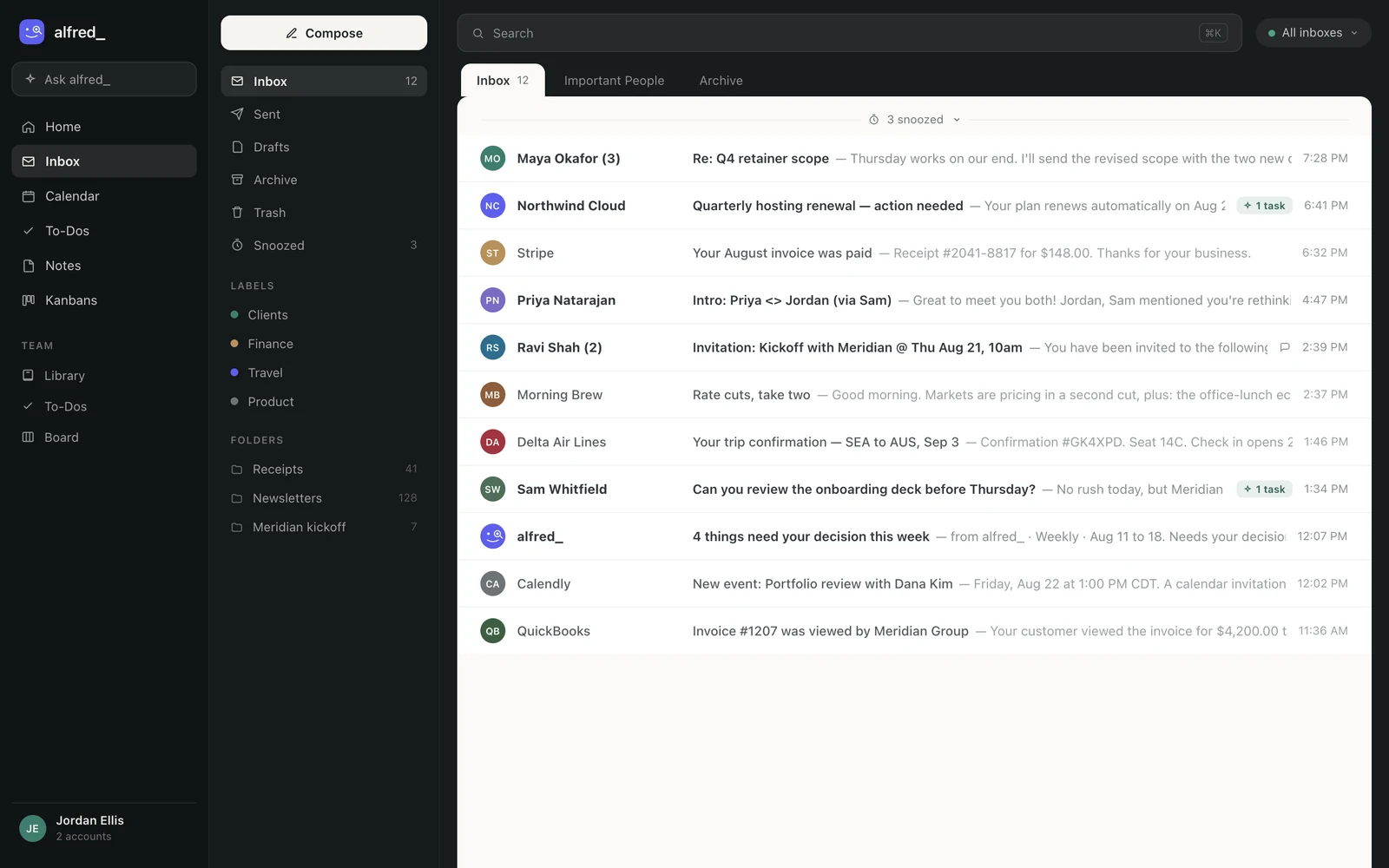
The alfred_ inbox showing mail from several connected accounts in one list

The accounts ChatGPT searches are the ones connected in alfred_. Shown with sample data.

What it looks like

You: What needs me today across all my inboxes?

ChatGPT: Three things. Tom Becker emailed your Gmail at 9:52 asking for a revised quote by noon. Your landlord wrote to your Outlook.com address about the lease renewal, due Friday. And the school emailed your iCloud address about Thursday’s pickup change. Everything else is newsletters and receipts.

You: Reply to Tom that the quote will be there by 11:30.

ChatGPT: Here’s the reply from your Gmail: “Hi Tom, the revised quote will be with you by 11:30.” Send it?

You: Yes.

Illustrative exchange. Names are invented.

The reply goes from the account Tom wrote to, after you say yes. Through this connection ChatGPT cannot delete an email, cancel an event or remove a to-do.

Calendars come with it

Each Google, Outlook and iCloud account brings its calendar. “When am I free Thursday afternoon?” checks all of them, not just one. ChatGPT can add an event, and anything that invites other people is shown to you first.
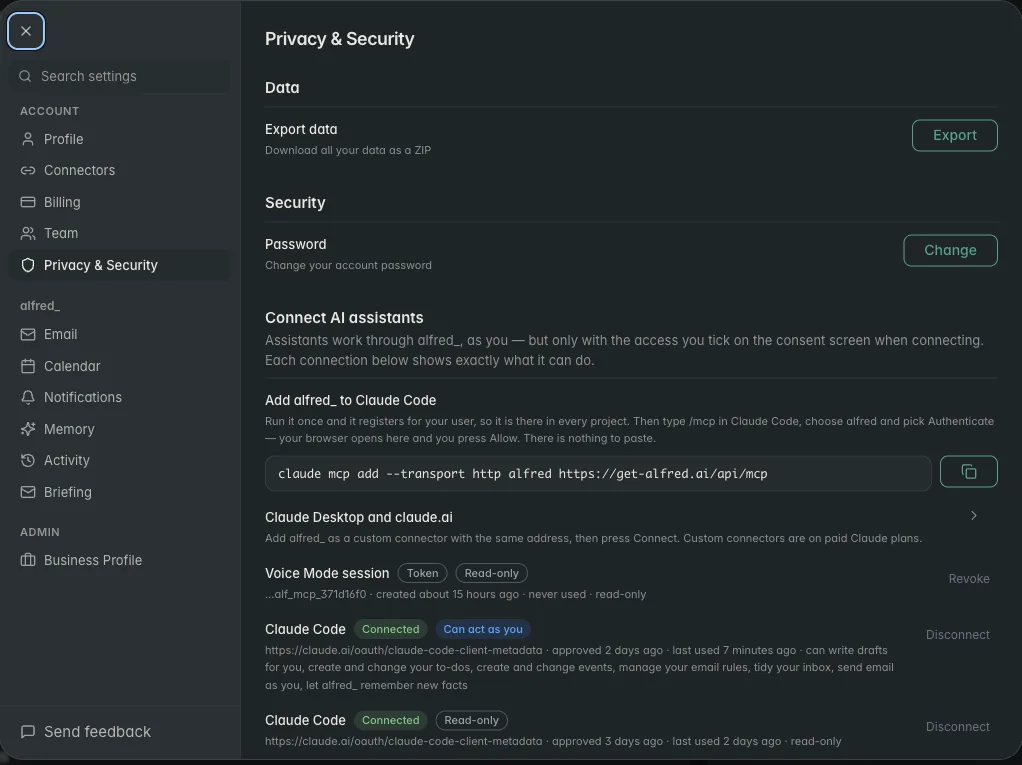
alfred_ settings listing each connected AI assistant and what it is allowed to do

Every AI connection is listed in alfred_ with its permissions, and you can revoke it there. Shown with sample data.

Between chats

ChatGPT answers when you ask. alfred_ keeps reading all six inboxes when you don’t: it flags the emails that need your answer, keeps a list of the replies you owe, sends a morning brief, and texts you when a client is waiting, so you can reply with a text and a 👍.

You need an alfred_ account for any of this. Plans start at $29.99 a month with a 7-day free trial.


Keep client work from slipping through the cracks

alfred_ is an AI assistant for client-facing teams. Each teammate gets help with email, calendar, replies and follow-ups.

See what’s slipping+ more

Frequently asked questions

How do I connect multiple email accounts to ChatGPT?

Connect each account to alfred_ (Gmail, Google Workspace, personal or work Outlook, iCloud, Yahoo, Zoho or any IMAP mailbox, up to 6), then open the alfred_ plugin in ChatGPT and press Connect. ChatGPT can then search every account in one question, read threads and calendars, and reply from the right address after you approve.

Can ChatGPT's Gmail plugin connect more than one Gmail account?

Yes. Since August 2026, ChatGPT's Gmail, Google Calendar and Google Contacts plugins can connect more than one Google account. Each of those plugins covers Google accounts. alfred_ puts Google, Microsoft, iCloud, Yahoo and IMAP accounts behind one plugin and one search.

Is there a ChatGPT plugin for Outlook and Gmail together?

alfred_ is one plugin that covers both, plus iCloud, Yahoo and IMAP. It takes personal Outlook.com and Hotmail accounts as well as Microsoft 365 work accounts, and searches them alongside Gmail in the same question.

Can ChatGPT send email from my accounts?

With alfred_, yes, if you allow sending when you connect. ChatGPT writes the message, alfred_ shows you the recipients, the from address and the text, and it goes out only after you say yes. It replies from the account the email came to.

Does it work in Claude too?

Yes. The same alfred_ account connects to Claude, Claude Desktop and Claude Code, so both AIs search the same inboxes.

About the authors

Written byPranav MishraAI/LLM Engineer at alfred_

Pranav builds the agents behind alfred_, the systems that watch your inbox and calendar, keep track of what is waiting on you, and surface what actually needs a response. He runs alfred_’s head-to-head field tests against other assistants.

Reviewed byConnor FataFounder & CEO of alfred_

Connor is the founder and CEO of alfred_, focused on making personal assistants accessible to business operators and individuals so they can focus on what matters and what’s important.