

The average professional receives 121 emails per day (cloudHQ, 2025). At that volume, any system requiring individual manual attention on each message is a system that will fail when workload peaks, which is precisely when good inbox organization matters most. Understanding why each system fails, not just how it works, is the starting point for choosing one that actually holds up.
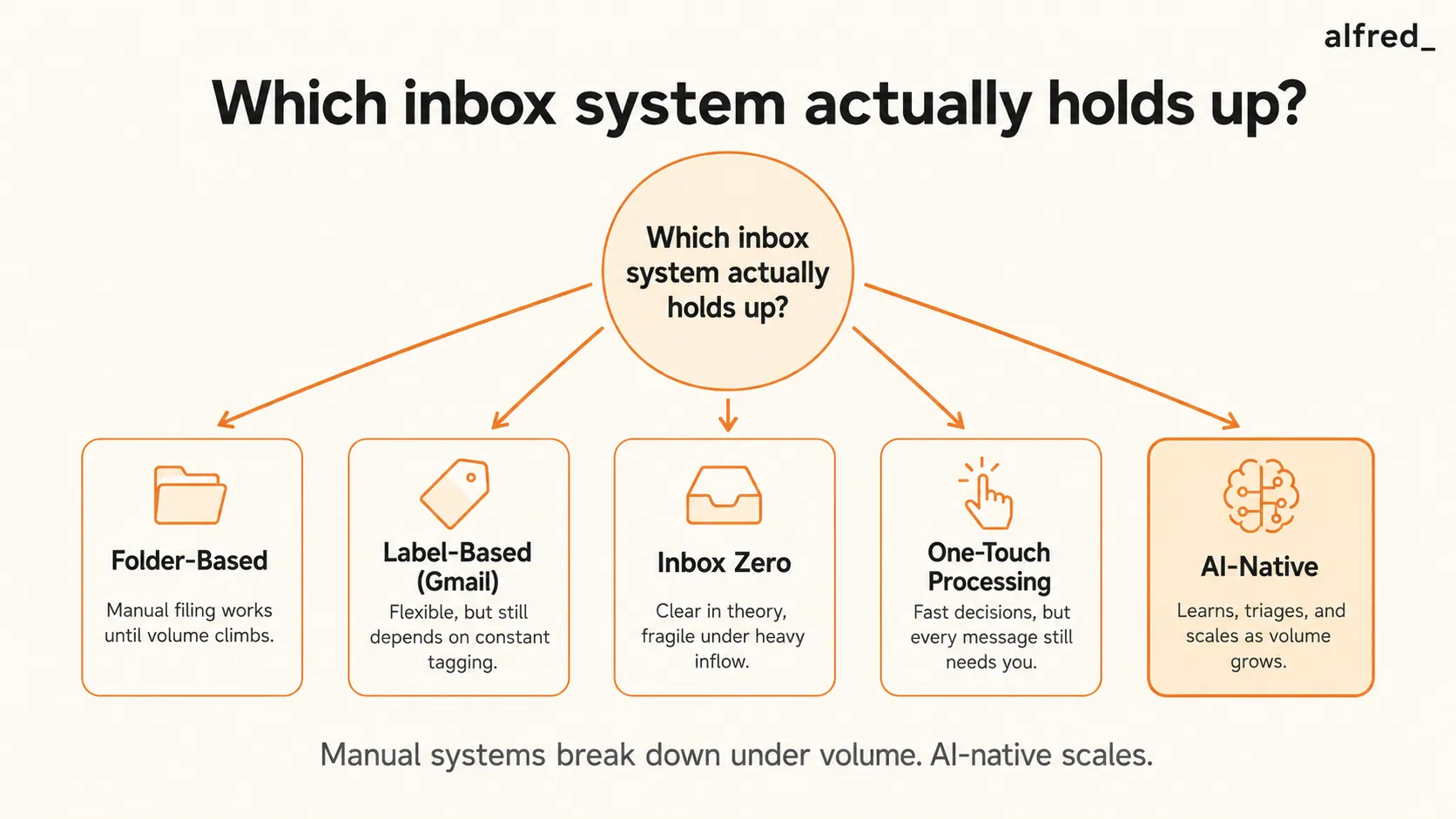
There are four distinct inbox organization approaches. Each has a genuine use case, a genuine failure mode, and a volume ceiling above which it stops being worth the maintenance cost. This guide covers all four honestly.
121 emails per day
The average office worker receives 121 emails per day and sends approximately 40, according to cloudHQ's 2025 workplace email statistics. At this volume, any inbox organization system requiring manual intervention on each message consumes significant time and degrades under pressure.
Why Inbox Organization Systems Fail
Before comparing the systems, it’s worth naming the structural failure mode they share: they all require consistent manual maintenance, and consistent manual maintenance breaks under stress.
The inbox-as-task-manager antipattern. The most common inbox disorganization pattern isn’t a bad filing system. It’s using the inbox itself as a task manager by leaving emails unread or starred to signal “needs attention.” The inbox is not optimized for task management: it has no priority ordering, no deadlines, no distinction between urgent and low-priority, and no separation between action items and reference material. Everything looks equally important; all starred emails look the same regardless of urgency. The result is a system where nothing gets reliably done and the backlog grows.
The mobile problem. Any inbox organization system that requires filing emails into specific folders will fail on mobile. Filing on a phone is friction-heavy (navigating folder trees, applying labels, dragging messages) in a way that desktop organization is not. Most professionals now process a significant portion of their email on mobile, which means any system that works on desktop but not on mobile is a half-system that produces inconsistency.
More than 10–15 folders exceeds cognitive overhead. In practice, once a folder system grows past roughly 10–15 folders, the cognitive overhead of deciding where each email belongs starts to exceed the organizational benefit. When the folder structure is complex enough that you spend time deciding which folder an email belongs in, the system is consuming more time than it’s saving. The goal of organization is faster retrieval and cleaner attention management, not a more elaborate taxonomy.
System 1: Folder-Based Organization
The traditional approach: create folders for projects, clients, teams, or topics, and manually file each email after reading. This is how email was originally designed to be organized, and how most enterprise email clients are set up.
A folder structure that works
The most durable folder structures are shallow and functional rather than deep and categorical. A working example:
- Action Required: emails needing a response or task
- Waiting For: emails where you’re expecting a reply or deliverable
- Reference: emails with information you’ll need later (no action)
- Archive: everything processed and closed
This four-folder system (popularized through GTD applications) keeps the structure flat enough that filing is fast and retrieval is intuitive. The inbox stays near-empty; emails are moved to one of four places immediately after reading. Search handles the rest, since modern email search is good enough that deep subfolder structures are unnecessary for retrieval.
Failure mode
Works well at 30–50 emails per day. Breaks above 80–100 because filing time exceeds search-time savings. Under high-volume conditions, the inbox fills faster than the filing keeps up, and the Action Required folder accumulates without being processed. Recovery requires a manual purge session that most people delay indefinitely.
System 2: Label-Based Organization (Gmail)
Labels are Gmail’s variant of folders with two key differences: a single email can carry multiple labels simultaneously, and labels can be color-coded for visual scanning. This adds flexibility (an email can be tagged as both “Client: Acme” and “Action Required” without duplicating it), but the underlying maintenance requirement is the same.
A label system that works
The most effective label systems combine status labels with automation. Status labels (which require manual application) work like the four-folder system above. Automation handles the categorical labels: Gmail filters can automatically apply labels to emails from specific senders, domains, or with specific keywords, meaning newsletters get labeled and archived automatically, vendor invoices get labeled without manual intervention, and GitHub notifications are sorted before they hit your inbox.
The practical takeaway: pairing labels with filters is meaningfully more effective for email management than using either one alone, because filters remove most of the manual labeling burden. The key is combining human status labeling (Action Required, Waiting For) with automated categorical labeling (handled by filters).
Failure mode
Same as folder-based organization but slightly more resilient because automation reduces the manual filing burden. The failure point: more than 10–15 labels creates a decision problem at the time of reading (“which labels apply here?”) that slows processing and leads to emails being left unlabeled, reverting to an unstructured inbox. Label proliferation is the specific failure mode of label-based systems.
System 3: Inbox Zero (Correctly Understood)
Inbox Zero is the most frequently cited and most frequently misrepresented inbox organization method. The misrepresentation: Inbox Zero means keeping your inbox at zero messages. The actual method: applying one of five decisions to every email so that none of them occupy mental space unresolved.
Merlin Mann introduced the method in a 2007 Google Tech Talk. His explicit definition: the “zero” refers to “the amount of time an employee’s brain is in his inbox,” not the message count. Mann himself confirmed in 2020 that he does not keep his inbox at zero messages and that the term had been broadly misunderstood. The method’s core is decision discipline: you do not leave an email in a state of unresolved attention.
The five decisions
- Delete: no value, remove immediately
- Delegate: someone else should handle this; forward with instruction
- Respond: reply now if it takes under two minutes
- Defer: requires more time; move to task manager with a date, archive the email
- Do: you can complete this action now
The key discipline: each email gets one decision, applied once. No re-opening an email to “think about it.” No starring as a vague reminder. One decision, then out of the inbox.
Failure mode
A large share of people who attempt Inbox Zero abandon it within the first month. The failure point is not the method but the maintenance: applying five clean decisions to every email requires cognitive load that is difficult to sustain continuously. Under high-stress conditions, deferring becomes the default, and the “defer” pile, which should be a task manager, reverts to a starred inbox. The method works well for people with under 60 emails per day and strong decision-making habits. It’s difficult to sustain above that volume without automation support.
System 4: One-Touch Processing
One-touch processing is the highest-discipline variant: every email is acted on definitively the first time it is opened. You don’t re-read emails. You don’t leave emails in the inbox as reminders. You don’t open an email and decide to think about it. Every open is accompanied by an action: reply, delete, archive, or add to task manager and archive.
The behavioral rationale: re-opening an email without acting on it is pure overhead. You read it again, reconstruct the context, and still don’t act. In practice, emails not acted on at first read tend to be the ones that get delayed indefinitely or never answered. One-touch processing eliminates this re-read cost entirely.
Failure mode
This system requires high-discipline consistent execution and only works if you also batch-process (i.e., open email only at defined windows when you have time to act on each message). Opening email while in a meeting or between calls, moments when you cannot act, breaks the one-touch rule immediately. It’s the most effective method for low-volume inboxes and highly disciplined processors. It’s the most fragile method under volume pressure, because any deviation from the rule starts accumulating unprocessed email instantly.
System 5: AI-Native Inbox (The Scaling Solution)
The four manual systems share a ceiling: they all require consistent human maintenance, and that maintenance degrades under volume. The AI-native alternative addresses this at the structural level: instead of organizing the inbox manually, you let AI classify incoming messages automatically and surface what needs attention.
The mechanism is different from filtering or rules-based automation. Rules-based systems (Gmail filters, Outlook rules) match patterns: sender domain, keyword in subject, message size. AI-based classification reads for meaning. It can tell a client complaint from a vendor newsletter even when both come from unfamiliar senders with no obvious keywords, because it understands the content, not just the surface signals.
alfred_ implements this as a daily briefing: rather than presenting you with 121 messages to sort, it surfaces the 5–10 that actually need your attention today: decisions waiting for you, follow-ups that have aged, messages from high-priority senders. The inbox still exists and is still searchable; you just don’t have to touch it until the important things have already been identified and brought to you.
The workflow replacement: you spend 10 minutes acting on a briefing instead of 90 minutes sorting an inbox. The sorting is automatic; the acting is yours. This is not a reduction in time spent on email. It’s a categorical change in what that time consists of.
Honest limitation
AI classification is highly accurate for emails with clear signals: explicit urgency language, known sender relationships, obvious action requests. It is weaker on emails requiring relationship subtext that only the recipient carries: the long-term client whose polite frustration reads as a normal message to the AI, the political context behind a seemingly routine internal request. For these, the briefing surfaces the email; the human judgment about how to handle it remains yours.
Choosing the Right System
The choice among these systems should be based on your actual email volume and your maintenance tolerance, not on which system sounds most sophisticated.
- Under 50 emails per day with high discipline: Inbox Zero or one-touch processing. Both work at this volume with consistent execution.
- 50–100 emails per day with moderate discipline: Label-based with Gmail filters automating categorical sorting. Manual status labels (Action Required, Waiting For) for the emails that need them; automation handles the rest.
- Over 100 emails per day: AI-native triage. At this volume, manual systems fail under pressure. The maintenance burden of any manual system consumes time that should be spent on the emails themselves.
- Highly variable volume (low most days, high during peaks): AI-native or a hybrid, with AI for primary triage and a manual folder structure for reference archiving of important threads.