

Your signature rides along on every email you send, which makes it either a quiet asset or a recurring liability, and most people get it wrong in one of two directions. Either there is no signature at all, forcing recipients to dig for your name and how to reach you, or it is a cluttered wall of logos, quotes, and legal disclaimers nobody reads. A good signature is a small, solved problem: a few lines that do a specific job and then get out of the way. Here is exactly what it should contain and what to cut.
What Your Email Signature Should Do
Bill Walsh, in The Score Takes Care of Itself, argued that the standard of performance applies to every customer touchpoint, not just the visible ones. Your email signature is a touchpoint that arrives in every email you send. It should do exactly four things, and nothing more:
- Identify you: Full name, title, company. The recipient shouldn’t need to look you up to know who they’re talking to.
- Enable contact: A phone number, mobile not office. People work everywhere now. If they need to reach you urgently, they need a number that follows you.
- Establish credibility: Your title and company do this. One link (website or LinkedIn) can add to it. That’s the complete credibility case.
- Reduce friction: A calendar booking link is the highest-value element a signature can contain. It eliminates the scheduling email chain entirely. More on this below.
Walsh’s principle applied: every touchpoint reflects your standard of performance. A signature with broken links, outdated titles, or a motivational quote signals something about your attention to detail, whether you intend it or not.
40
emails the average office worker sends per day; every one carries your signature
The Anatomy of a Professional Email Signature
Every professional email signature contains the essential elements. Everything else is optional, and most optional elements should be omitted.
Essential Elements (always include)
- Full name
- Title
- Company name (with website link if appropriate)
- Mobile phone number
- One link: website, LinkedIn, or calendar booking link
Optional Elements (include if genuinely useful)
- Calendar booking link (highly recommended if not using as your one link)
- Brief professional tagline if relevant to your business
- Second phone number if you have a meaningful distinction (e.g., direct line for existing clients)
Never Include
- Motivational quotes: they add noise and invite misinterpretation
- Multiple social media icons: choose one or none
- Legal disclaimers (unless legally required; even then, keep them brief)
- Headshot (context-dependent and often looks promotional rather than professional)
- “Sent from my iPhone”: remove this immediately
- A paragraph about your services: that belongs on your website
- Your email address: if they’re reading your email, they have it
Signature Templates by Role
Four templates covering the most common professional contexts. Copy the structure; fill in your information.
Consultant or Freelancer
[Full Name] [Specialty] Consultant [Company Name or "Independent"] +1 (555) 000-0000 [yourwebsite.com or LinkedIn URL] Book a call: [calendar link] ### Executive or Senior Leader [Full Name] [Title] | [Company Name] +1 (555) 000-0000 [company website] ### Sales Professional [Full Name] [Title], [Company Name] +1 (555) 000-0000 [company website] Schedule a demo: [calendar link] ### General Professional (Any Role) [Full Name] [Title], [Company Name] +1 (555) 000-0000 [LinkedIn URL or website] ## The Calendar Link: The Highest-Value Signature Element If you use any scheduling tool (Calendly, cal.com, HubSpot Meetings, Outlook Booking, or any other), your calendar link belongs in your email signature. This is not a minor optimization. It fundamentally changes how scheduling happens.
Without a calendar link, a typical scheduling sequence: three to five emails over one to two days, sometimes across multiple time zones, before a meeting is confirmed. With a calendar link: you mention “here’s my calendar” in a single email, and the meeting appears on your calendar when the recipient books it.
A calendar booking link in your signature eliminates the scheduling email chain for every person who emails you. Over a year, that’s hundreds of email threads that never happen, and hundreds of scheduling conversations that complete in one step.
alfred_ integrates with your calendar and can include a scheduling link in your email drafts when the context calls for it, removing the friction of remembering to include the link from the process entirely.
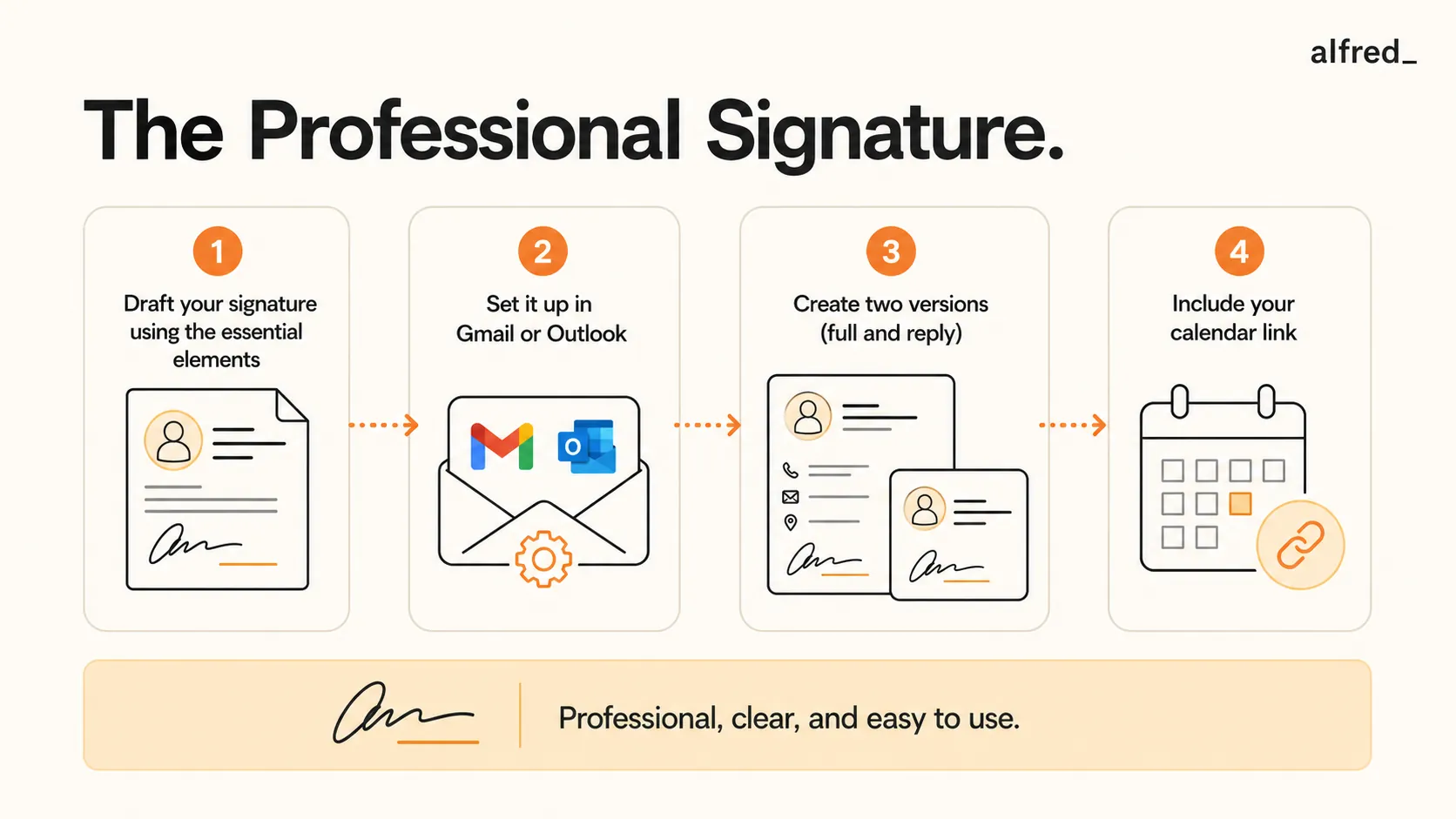
Step-by-Step: Set Up Your Email Signature
1. Draft Your Signature Using the Essential Elements
Write your full name, title, company, mobile phone, and one link. If you have a calendar booking link, use it as your link or add it as a second line. Keep it to four to six lines maximum. Paste it in a plain text editor first to see what it looks like without formatting.
2. Set It Up in Gmail or Outlook
Gmail: Click the gear icon → See all settings → General → Signature section → Create new → name it “Full” → paste your signature → save at the bottom of the page.
Outlook (desktop): File → Options → Mail → Signatures → New → name it → paste your signature → set as default for new messages.
3. Create Two Versions: Full and Reply
Create a second signature for replies, name it “Reply”, containing only your name and phone number. Set this as the default for replies and forwards. Long signatures in reply threads add noise: the recipient already knows your company, and a six-line signature after a two-sentence reply is out of proportion.
Example reply signature: “[First Name] | +1 (555) 000-0000”
4. Include Your Calendar Link: It Will Save You Hours Per Week
If you use a scheduling tool, add your booking link as a hyperlinked line at the end of your full signature: “Book a time: [your calendar link].” When you send an email suggesting a meeting, the recipient can immediately book without a back-and-forth. Over a week of outbound emails, this eliminates dozens of scheduling exchanges.
Mobile Signature Setup
“Sent from my iPhone” is not a professional email signature. Remove it and replace it with a minimal version of your signature. When you’re emailing from your phone, the recipient still deserves to know who you are.
Mobile Signature Setup
- iOS: Settings → Mail → Signature → delete “Sent from my iPhone” → type your minimal signature (name + phone)
- Android/Gmail app: Gmail app → Settings → your account → Mobile Signature → type your signature
- Recommended mobile signature: “[Full Name] | [Title] | [Phone]” (two lines maximum)
Keeping Your Signature Current
An email signature with outdated information (old title, disconnected phone number, inactive LinkedIn) is worse than no signature. It signals inattention. Add a recurring reminder to review your signature every six months, or immediately when your title, company, or contact information changes.
- Review every 6 months as a standing calendar reminder
- Update immediately on job/title change: don’t wait for the reminder
- Update phone number if it changes: this is the most frequently outdated field
- Remove links to projects, social accounts, or booking pages you no longer maintain
- Test all links quarterly: calendar booking links in particular break when you change tools