

- AI memory migration Definition
- the process of moving durable facts, preferences, and context from one AI assistant (such as ChatGPT or Claude) into another (such as alfred_) so the new assistant does not require you to re-teach basics from scratch. For work assistants, migration is usually a one-time paste import plus ongoing learning from connected email and calendar accounts.
You’ve spent months teaching ChatGPT or Claude who you are. Your role, your tone, your standing rules, the names that matter. Switching to alfred_ for email and calendar shouldn’t mean starting over.
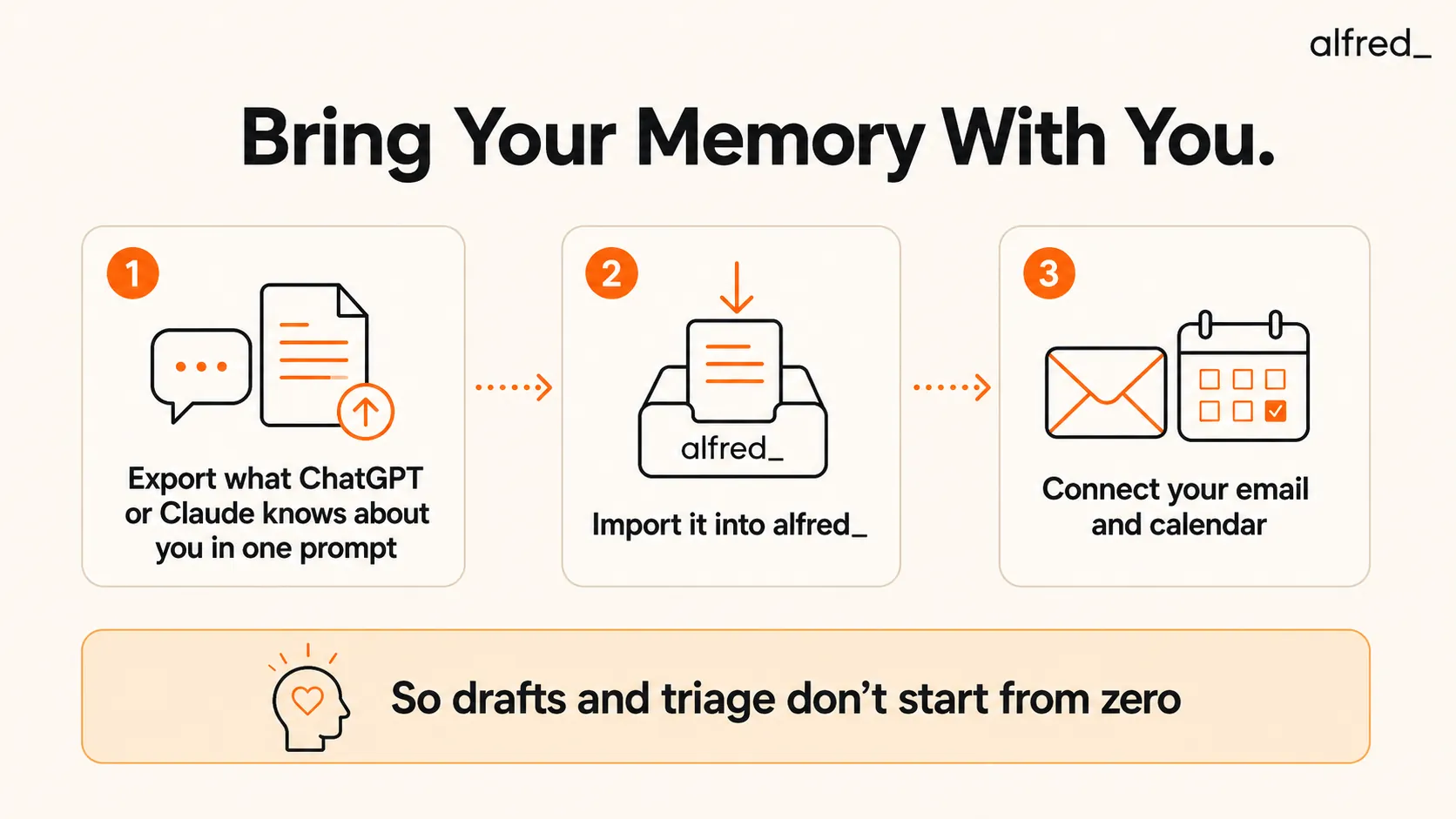
You can bring that context across in one session. Here’s how, what actually transfers, and what alfred_ will learn on its own once your inbox is connected.
What You’re Actually Migrating
ChatGPT Memory and Claude’s memory features store facts you’ve told the model across sessions: job title, writing preferences, pet names, project deadlines. They do not include:
- Your unread inbox or thread history
- Calendar conflicts or meeting prep context
- How you actually phrase replies (vs. what you said you prefer in chat)
alfred_ is built for that second layer. Import handles the chat-taught facts. Connecting Gmail or Outlook handles the work-taught facts, voice-matched drafts, triage priorities, follow-up patterns.
Be realistic about the split:
| Source | What transfers well | What doesn't |
|---|---|---|
| ChatGPT / Claude export | Preferences, VIP names, scheduling rules, project facts | Full conversation archives |
| alfred_ after email connect | Writing voice, urgency patterns, relationship signals | Nothing until you connect accounts |
The goal isn’t a perfect clone of ChatGPT. It’s not re-explaining yourself on day one while alfred_ catches up to how you really work.
Step 1: Export from ChatGPT or Claude
Open ChatGPT or Claude in a new chat (so you don’t mix export output with an old thread). Paste this prompt exactly:
Export all of my stored memories and any context you've learned about me from past conversations. Preserve my words verbatim where possible, especially for instructions and preferences.Wait for the full response. Copy everything, not a shortened version you ask it to summarize.
Tips:
- If the model says it has no memories, you may still get useful output from custom instructions and recent context. Copy that too.
- Run the same prompt in both tools if you’ve split time between ChatGPT and Claude.
- Redact anything you don’t want in alfred_ (health details, family info) before pasting. You control what crosses over.
Step 2: Import into alfred_
- Sign in to alfred_ and open Settings.
- Go to Import Memory (under your alfred_ account settings).
- Paste the full export into the text box.
- Run import. alfred_ parses durable facts and stores them as suggestions, context it can use and refine, not locked rules.
Imported facts cover scopes like preferences, relationships, and current work context. They won’t override what alfred_ later infers from email if the two disagree; your real behavior wins over what you once told a chatbot.
If Import Memory isn’t in your settings yet, use either fallback:
- Chat: Paste the export and say: “Here’s context from my old AI assistant. Remember the preferences and facts that matter for how you handle my email and calendar.”
- Support: Email support@get-alfred.ai with your export if you want help with a large dump.
For individual facts after import, use Teach alfred_ prompts: “Remember Sarah prefers Loom over written updates.”
Step 3: Connect Email and Calendar
Migration without integration is incomplete. The export gets alfred_ your stated preferences. Your inbox gets alfred_ your actual preferences, how long your replies are, who gets a same-day response, what you archive without reading.
Connect Gmail or Outlook (and your calendar) before you judge whether the switch worked. Give it 7–14 days of normal work. That’s when draft quality and triage start matching you, not a generic professional.
What improves automatically without more prompting:
- Draft replies that match your sent-mail voice
- Triage that reflects who you actually prioritize
- Tasks extracted from threads you would have flagged yourself
- Morning brief items that match your real decision queue
What to Export If the Prompt Returns Little
Some accounts have thin official “memory” stores. Manually add a short list before import:
- Role: title, company, what you do day-to-day
- Communication: tone (concise vs. warm), sign-off, languages
- Schedule: no-meeting windows, time zone, default meeting length
- People: VIP clients, execs, family names that appear in work email
- Projects: active deals, renewals, deadlines alfred_ should surface
- Hard rules: “Never auto-send,” “BCC personal on work travel,” etc.
Even 15 lines of structured notes beat re-teaching from zero.
Common Mistakes
Pasting a summary instead of the export. Summaries drop verbatim instructions. alfred_ needs your exact phrasing for rules you were careful about.
Expecting chat memory to replace email memory. If you told ChatGPT you’re “direct and brief” but your sent mail is warm and detailed, alfred_ will follow your mail. That’s a feature.
Skipping the trial week. How to choose an AI assistant applies here: evaluate after 30 days of connected use, not after one import.
Importing then never reviewing Memory. Check Settings → alfred_ (Memory) and Rules periodically. Delete or correct anything wrong; alfred_ learns from your edits.
ChatGPT Memory vs alfred_ Memory (Honest Comparison)
Best ChatGPT alternatives already cover the structural gap: ChatGPT waits for prompts and doesn’t touch your inbox. Memory migration doesn’t fix that. It only removes the cold-start penalty when you add a work-native assistant.
| ChatGPT / Claude memory | alfred_ memory | |
|---|---|---|
| Input | What you say in chat | Chat import + email/calendar behavior |
| Output | Better chat replies | Triage, drafts, tasks, morning brief |
| Updates | When you tell it to remember | Continuous from work patterns |
| Best for | Writing, analysis, coding in chat | Executive communication overhead |
You’re not replacing ChatGPT for everything. You’re moving work context to a tool that can act on it.
When Migration Isn’t Worth It
Skip the export if:
- You barely used ChatGPT Memory (never enabled, empty store)
- You’re new to alfred_ and have no strong preferences yet, just connect email and teach as you go
- Your old AI context is outdated (old job, old clients), a fresh start may be cleaner
Next Steps
- Export from ChatGPT and/or Claude with the prompt above.
- Import via Settings → Import Memory (or chat/support fallback).
- Connect Gmail or Outlook.
- Run one normal work week and review your morning brief.
Try alfred_, and run it on the features you rely on daily: chat, triage and your morning brief don’t use credits.