

The Problem: Writing Emails Takes Forever
You know the feeling. You open an email that needs a response. You start typing. You delete it. You retype. You wonder if the tone is right. You edit again. What should have taken 30 seconds takes 5 minutes.
Multiply that by 20-40 emails per day, and you’re spending 2-3 hours just writing responses, not including the time spent reading and triaging. For consultants billing by the hour, the hidden cost of email can exceed six figures annually.
2.6 hours
the average professional spends reading and answering email each workday
Most of these emails follow predictable patterns:
- “Thanks for sending this. I’ll review and get back to you by Friday.”
- “Yes, that time works for me. See you then.”
- “Here’s the document you requested. Let me know if you have questions.”
- “I’m available Tuesday at 2pm or Wednesday at 10am. Which works better?”
These aren’t complex communications. They’re routine. And they’re exactly the kind of work AI can handle.
How AI Email Drafting Works
AI email drafting reads incoming messages, understands what’s being asked, and prepares appropriate responses. Here’s the process:
The AI Drafting Process
- 1. Reading: AI reads the incoming email, sender, subject, full content, thread history
- 2. Understanding: Identifies what’s being asked or what response is expected
- 3. Context: Considers your relationship with the sender, past conversations, your calendar
- 4. Drafting: Writes an appropriate response matching the tone and content needed
- 5. Presenting: Shows you the draft for review alongside the original email
You’re not removed from the loop. You review every draft before it sends. But instead of writing from scratch, you’re editing and approving, which is much faster.
Step-by-Step: Set Up AI Draft Replies with alfred_
The short version of how drafts work, and the approve, edit or discard flow, is in Drafts in your voice.
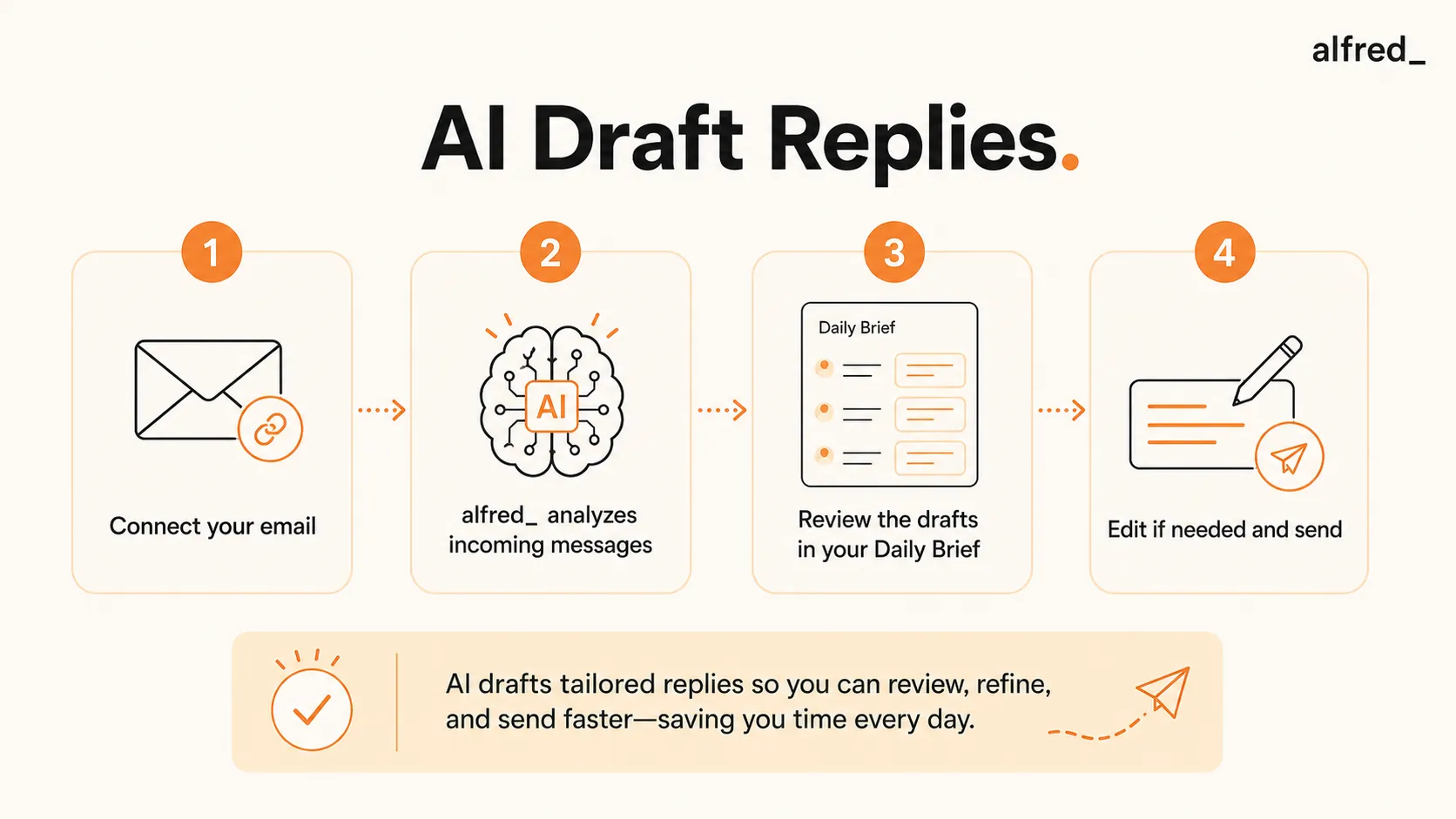
1. Connect Your Email Account
Sign up for alfred_ and connect your Gmail or Outlook account:
- Go to get-alfred.ai/signup
- Click “Connect Email”
- Authorize access via OAuth (secure, no password shared)
alfred_ needs access to read emails and understand context for drafting appropriate replies.
2. alfred_ Analyzes Incoming Emails
As emails arrive, alfred_ automatically:
- Reads the full email content and thread history
- Identifies emails that need a response
- Understands what kind of response is appropriate
- Drafts replies based on context
This happens continuously, before you start your day, while you’re in meetings, while you’re doing deep work.
3. Review Drafts in Your Morning Brief
Open alfred_ to see your morning brief with emails that need responses:
Email from: Sarah Chen
“Can you send me the Q4 report by Thursday?”
“Hi Sarah, I’ll have the Q4 report to you by Thursday EOD. Let me know if you need anything else in the meantime.”
Each email shows the original message and a prepared draft ready for your review.
4. Edit If Needed, Then Send
For each draft:
- Send as-is: If the draft is good, tap to send
- Edit first: Make changes, then send
- Rewrite: If completely off, write your own
Most drafts need minimal editing. Over time, alfred_ learns your style and drafts become more accurate.
What AI Draft Replies Look Like in Practice
Before: Writing From Scratch
- 8:00 AM: Open inbox. 15 emails need responses.
- 8:05 AM: First email. Think about what to say. Type response. Edit. Send.
- 8:12 AM: Second email. Same process. Getting distracted by wording.
- 8:20 AM: Third email. This one requires thought. Write, delete, rewrite.
- 9:30 AM: Finally done with responses. 90 minutes gone.
Time spent: 90 minutes writing 15 responses
After: Reviewing AI Drafts
- 8:00 AM: Open alfred_. Morning brief shows 15 emails with draft replies.
- 8:02 AM: First 5 drafts look good. Tap to send each one.
- 8:05 AM: Next 3 drafts need small edits. Quick tweaks, send.
- 8:10 AM: 2 drafts miss the mark. Rewrite those manually.
- 8:18 AM: Remaining 5 drafts sent with minor edits.
- 8:20 AM: All 15 responses done. Start real work.
Time spent: 20 minutes reviewing and sending 15 responses
That’s 70 minutes saved every morning. Over a week, that’s nearly 6 hours reclaimed for actual work. Draft replies are just one of the 10 ways AI handles your email so you can focus on what matters.
Types of Emails AI Drafts Well
Works Great
- Acknowledgment emails (“Got it, thanks!”)
- Scheduling responses
- Simple questions with clear answers
- Follow-up requests
- Status updates
- Forwarding with context
- Meeting confirmations
- Document requests
May Need Editing
- Sensitive client communications
- Complex negotiations
- Bad news delivery
- Highly technical explanations
- Creative or strategic content
- Relationship-building messages
- Anything requiring nuance
The 80/20 rule applies: about 80% of emails are routine and draft well. The 20% that need your personal touch still benefit from having a starting point.
Tips for Better AI Drafts
1. Let It Learn Your Style
The more you edit drafts, the better alfred_ understands your communication style. Edit consistently for the first week, and drafts will match your voice more closely over time.
2. Keep Your Calendar Connected
When alfred_ knows your calendar, drafts can accurately propose meeting times, acknowledge scheduling conflicts, and reference upcoming events.
3. Don’t Overthink Edits
If a draft is 90% right, send it. Perfectionism on routine emails wastes the time you’re trying to save. Save your careful editing for emails that truly matter.
4. Use Drafts as Starting Points
Even for complex emails where you’ll rewrite significantly, starting from a draft is faster than a blank page. Use the AI draft as a structure to build on.
Beyond Drafts: What Else alfred_ Handles
AI draft replies work alongside other automation:
- Email triage: Before drafting, alfred_ sorts your inbox, archiving noise so you only see emails that matter. See how to automate email triage for the full setup guide.
- Task extraction: When emails contain action items, alfred_ creates tasks automatically. No manual entry.
- Follow-up tracking: If you’re waiting on someone, alfred_ monitors the thread and alerts you if a response is overdue.
- Calendar management: alfred_ identifies conflicts, shows real availability, and helps protect your focus time.
Draft replies are one piece of a complete AI email assistant that handles your admin work end-to-end.
Get Started in 5 Minutes
Setting up AI draft replies takes less time than writing a few emails manually:
- 1. Sign up at get-alfred.ai (free tier available)
- 2. Connect Gmail or Outlook
- 3. Check your morning brief tomorrow morning
- 4. Review drafts, tap to send
That’s it. Tomorrow you’ll have draft replies waiting, and you’ll wonder why you ever wrote routine emails from scratch.